ご利用方法
Quick Guide
チャットテーブル
チャットテーブルはURLを知っている人だけが参加できる会議室です。
チャットテーブルを作る
新しいチャットテーブルは、トップページの右側のミーティングメニューから作成できます。「チャットテーブル名」を入力し、「チャットテーブルを開始する」ボタンを押してください。「チャットテーブル名」はチャットテーブル(会議室)の上部に表示されます。
「チャットテーブルを開始する」ボタンを押すと、チャットテーブルの画面に異動します。お使いのブラウザによっては、コンピュータのカメラとマイクへのアクセスを求められますので、許可してください。サービスの特性上、少なくともマイクへのアクセスの許可は必須です。
カメラとマイクへのアクセスを許可すると、以下のようなチャットテーブルの画面が表示されます。

画面上部にQRコード(二次元バーコード)とチャットテーブル名が表示されます。また、チャットテーブル名の下にこのチャットテーブルのURLが表示されます。このチャットテーブルに招待する人に、このリンクをコピーして送ってください。なお、チャットテーブル名左のQRコード(二次元バーコード)も、このチャットテーブルへのリンク情報なので、スマートフォンなどから参加する場合はこのQRコードを利用すると便利です。
チャットテーブルに参加する
チャットテーブルに参加するには、チャットテーブルの作成者か他の参加者からチャットテーブルのURLまたはQRコードを教えてもらい、アクセスするだけで簡単に参加できます。
チャットテーブル内でのマイク・カメラ操作と画面共有
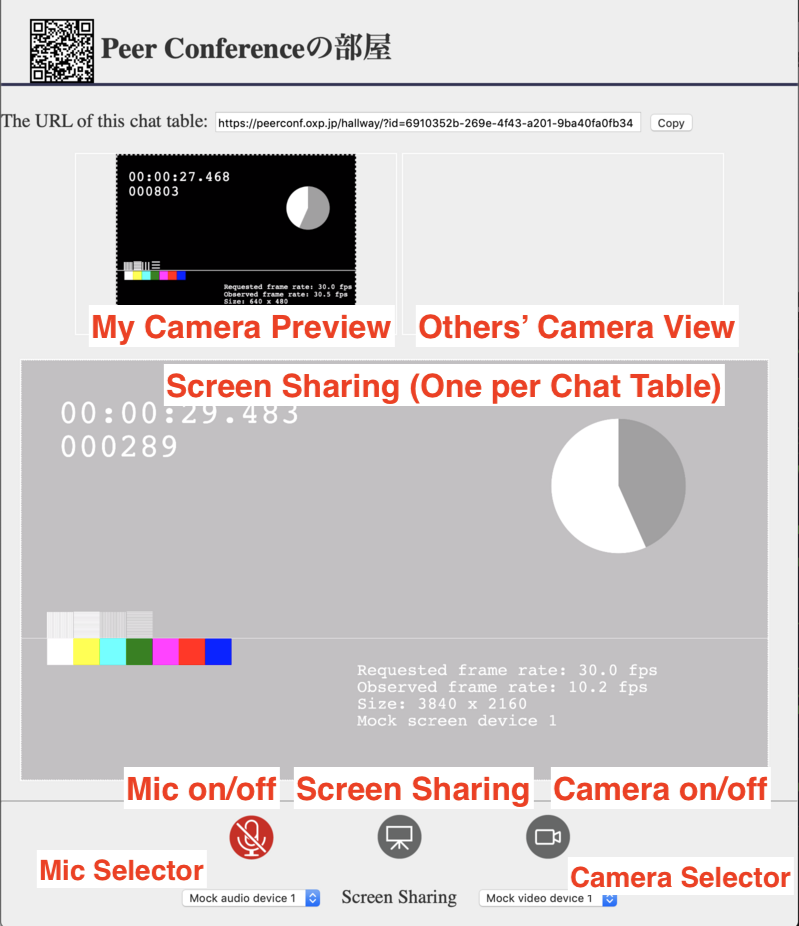
チャットテーブル画面は以下のような構成になっています。上部に自分のカメラ映像と他の参加者のカメラ映像が表示されます。画面中央には、参加者のうち誰かが画面共有を行っている場合、その画面が表示されます。画面下部には、マイクやカメラのオン・オフ切り替えおよび入力デバイスの選択、画面共有を開始するための操作盤があります。
Chat Table
A chat table is a virtual meeting room where anyone can join using the chat room's URL.
To Create a New Chat Table
You can create a chat table from the meeting control center at the right side of the top page. Enter Chat table's name
and click the Start your chat table
button. The specified chat table's name will be displayed at the top of your chat table page.
You will be redicrected to your created chat table's page when you start it. Please give permissions to access your microphone and camera so that you can join the meeting with them.
The page like the following image will be displayed after accepting the access to your microphone and camera.
The chat table's name along with a QR code is displayed at the top of the page. In addition, the URL for this chat table is displayed. Please copy and share this URL to invite guests to this chat room. The QR code also includes the link to this chat room so that smart phones can access to this page easily.
To Join a Chat Table
You can join a chat table by accessing the shared chat table's URL. Please get the URL or the QR code for a chat room from the chat room creator or any other participants.
To Control Your Mic, Camera, and Screen Sharing
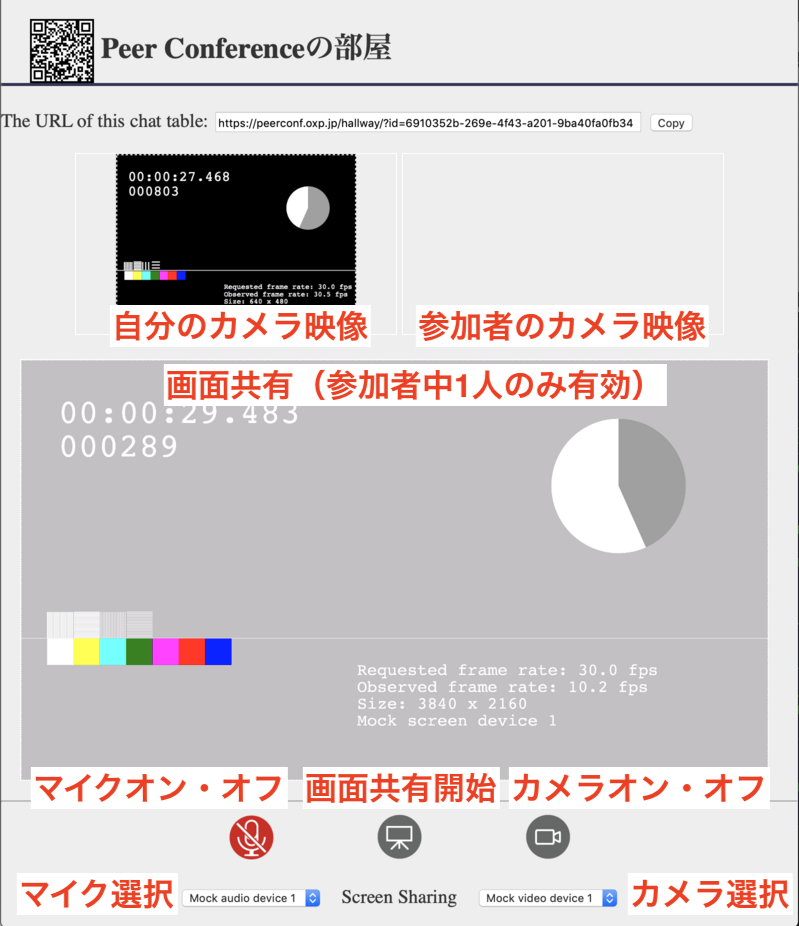
The chat table's view is organized as the following image. The top part of the page displays your camera preview and the camera images from the other participants. The center part of the page displays a screen sharing video in case anyone of the participants is sharing their screen. The bottom part of the page places controls for your mic, screensharing, and camera. You can choose your input media device from this control panel.